November 2025
A more beautiful way to make MyMaps
A friendly guide comparing Google My Maps and PamPam — and how to make interactive maps that actually look good.
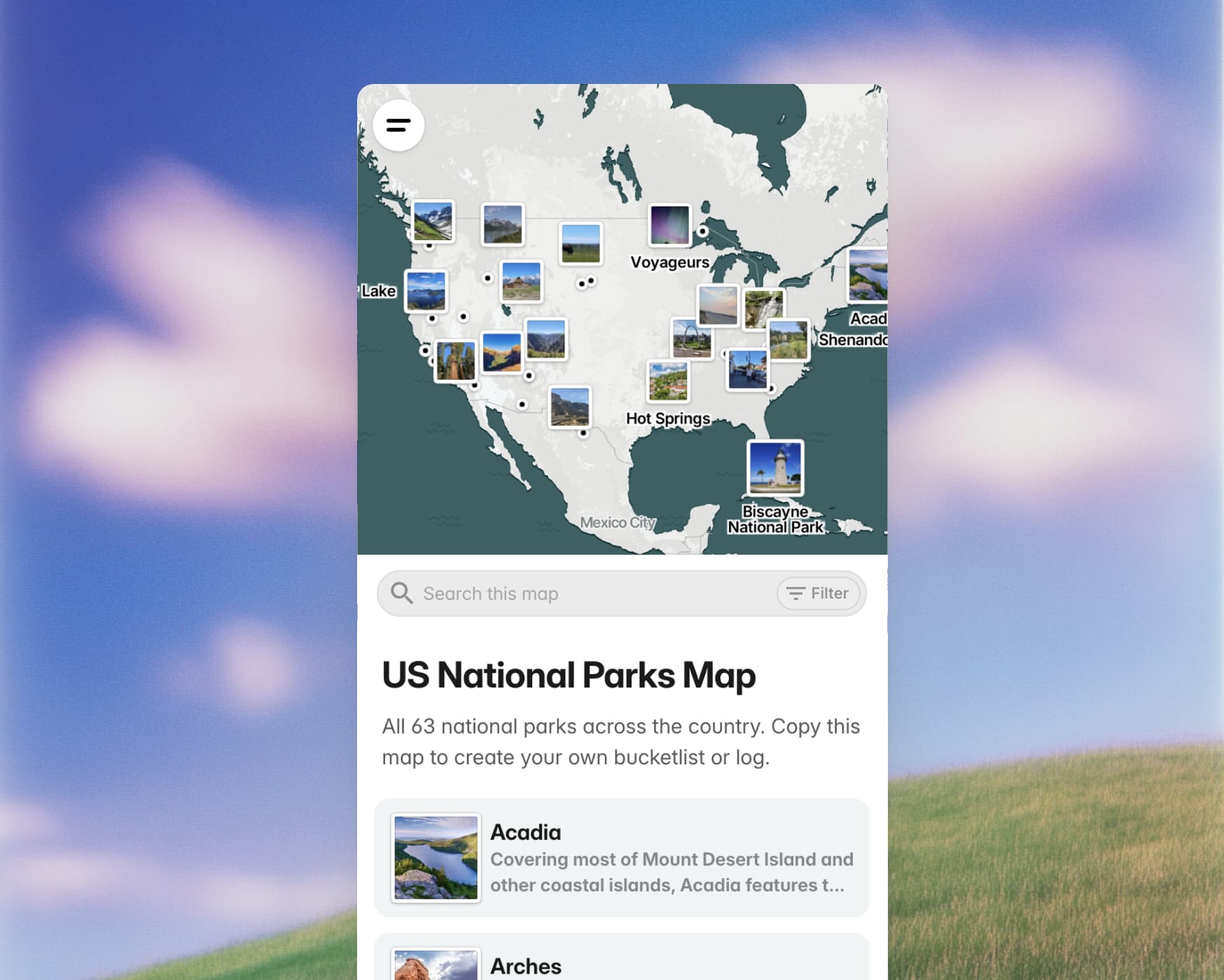
When people set out to make their own map for the first time — whether it’s a travel plan, a business directory, or a collection of local favorites — the most common starting point is Google My Maps. It’s familiar, free, and widely recommended when someone searches for how to make a map.
But once you try to edit a My Map on your phone, embed it cleanly on your website, or make it feel like your brand, the constraints become clear. The core features work, but the experience shows its age.
PamPam was designed as a more modern alternative. PamPam is a custom map maker that helps you make your own map and create interactive maps with AI. You can build custom maps, travel maps, and simple map animations in seconds, all designed to look modern and easy to share. It’s built for beginners and non-experts who want something clean, flexible, and enjoyable to use.
Here’s how the two tools compare and what to expect when making your first map.
What Google My Maps Does Well
Google My Maps remains a practical entry point for learning how to make a map. Because it’s tied to Google Maps data, you can search for almost any place and add it instantly. It also supports both walking and driving routes, which helps when planning a road trip or outlining a neighborhood tour.
The limitations appear as soon as you try to go further. My Maps is difficult to edit on mobile, and the embedded maps often feel fixed-width and dated. Customizing the map to match your brand or style is limited, and managing many places can become time-consuming.
For basic plotting or simple experiments, My Maps gets the job done. But it wasn’t built with modern sharing or customization in mind.
What PamPam Focuses On
PamPam takes a simpler, more design-forward approach. As a custom map maker, it’s built for people who want to make their own map without feeling overwhelmed.
You can add places by searching for them, importing a CSV, or describing what you need — and PamPam’s AI will help find or suggest relevant spots. Everything works seamlessly on mobile, so you can build and update your map from anywhere.
PamPam also supports walking and driving routes, making it useful for trip planning, guides, and multi-stop itineraries. Because maps are collaborative, other people can add places directly, which is helpful for community projects, teams, or shared travel plans.
Customization stays simple: choose your map colors, adjust pin icons, and shape the look so it feels like your project. PamPam avoids heavy GIS features on purpose — the goal is clarity, not complexity.
How to Make a Map in Google My Maps
The workflow in My Maps is familiar: create a blank map, search for places, add them manually, and draw routes if needed. You can label points and adjust basic pin colors.
As your project grows, the limitations become clearer. Editing is difficult on the go, and embedding maps on a modern website can feel stiff. Customizing the appearance is limited to a small set of options.
If you only need a handful of points and don’t mind a dated design, it still works.
How to Make a Map in PamPam
Making a map in PamPam starts with naming it, then adding places. You can:
- search for locations,
- import an existing spreadsheet, or
- ask AI to help generate or discover places around a theme.
Once your spots are added, you can organize them into sections or categories. If you’re planning a trip, you can draw walking or driving routes to connect the stops.
Customizing the map is straightforward: update your brand colors, choose icons, and refine the layout. Nothing feels rigid or fragile, and your design updates instantly.
When you’re ready to share, you can send a link, embed the interactive map on your website, or export an image or a simple map animation. The map remains collaborative, so others can add or edit places as needed.
For first-time map makers, the experience feels more intuitive and modern than traditional tools.
My Maps vs. PamPam: Choosing the Right Tool
Google My Maps is useful if you want something familiar, tied closely to Google’s data, or if your project is small and simple. It supports route drawing and basic plotting but offers limited flexibility beyond that.
PamPam, as a custom map maker, is designed for people who want a cleaner, more modern experience. It supports walking and driving routes, AI-assisted place discovery, simple customization, mobile editing, and collaborative map building. If you’re learning how to make a map for the first time — or you’ve outgrown My Maps — PamPam offers a lighter, more thoughtful way to create interactive maps.
If you’re exploring both tools, we’d love to hear what you’re trying to map and where you get stuck. Every project helps us improve the experience for the next person learning how to make their own map.